Qualidade profissional em minutos
Um anúncio SaaS que custaria centenas de dólares saiu em cerca de 15 minutos (00:00, 00:38).
RandomAI · 2 out 2026 · 11:49
Tutorial que mostra como usar o Claude Opus 5.5 com Remotion, e depois com MCPs, para gerar motion graphics com música, voz e efeitos.
Canal RandomAI
01 — Resumo
O vídeo apresenta o Claude Opus 5.5 como capaz de produzir motion graphics com aparência profissional e ensina o processo. O método principal é usar o Claude Code com o framework Remotion (ou HyperFrames), com um prompt detalhado e um vídeo de referência. Esse fluxo gera vídeos de bom nível, mas pode sair sem áudio, o que se resolve pedindo música e efeitos sintetizados em Python. No “nível dois”, o Opus vira orquestrador e usa ferramentas externas por Model Context Protocol para gerar imagens, voz, música e 3D com Blender. O teste final, o Sol comparado aos planetas, saiu quase pronto; só o roteiro ficou fraco.
Um anúncio SaaS que custaria centenas de dólares saiu em cerca de 15 minutos (00:00, 00:38).
Um pedido de showreel de 15 segundos gerou animação, efeitos e música (01:25).
O modelo também produz animações 3D (01:25).
Frameworks de vídeo por código são o melhor caminho para motion graphics precisos (03:04).
Basta pedir e mandar pesquisar a documentação oficial (03:52).
Prompts genéricos geram resultados fracos, e um vídeo de referência guia ritmo e layout (05:18, 06:07).
Sem instrução, o Remotion com Claude Code pode sair mudo; Python sintetiza música e efeitos (07:43).
O Opus 5.5 já produz motion graphics com aspecto profissional (exemplos iniciais).
O caminho mais preciso é parear o modelo com um framework de vídeo por código.
O resultado depende de um prompt detalhado, com referência visual e instrução explícita de áudio.
Conectar o modelo a ferramentas externas por MCP leva a resultados ainda melhores.
O que sobra de fraco, como o roteiro, é fácil de corrigir com revisão ou texto próprio.
Conclusões e provocações
Para aprofundar
02 — Prompts
Os prompts do vídeo, na íntegra e prontos para copiar.
195 palavras
Set up the latest stable version of Remotion ja the specified project folder so I can create polished, programmatic motion graphics videos with Al coding agents.
First, inspect the folder and existing development environment. Research Remotion's current official documentation, then install and configure it using the recommended setup. Preserve any existing files and use a compatible package manager and dependency versions.
Prepare a clean, organized project with reusable components, compositions, assets, and animation utilities. Add project instructions that help Al agents understand how to create scenes, animate typography and graphics, synchronize audio, preview compositions, and render finished videos.
Create a polished sample composition at 1920×1080, 30 fps with animated text, shapes, and smooth transitions to demonstrate that everything works. Make resolution, frame rate, and duration easy to change.
Install the dependencies needed for previewing and rendering. Verify that Remotion Studio opens, the sample plays correctly, and an MP4 renders successfully. Resolve setup errors before finishing.
Finally, provide the exact commands to open the project, preview videos, create new compositions, and export an MP4. State the installed Remotion version and link the official documentation used. Complete the installation and working setup rather than only providing instructions.
257 palavras
Create a polished 20-secnd motion graphics video in Remotion comparing Sonnet 5.5 and Opus 5.5.
Use the provided reference video for the motion-design style: study its layouts, typography treatment, pacing, text animations, transitions, easing, and camera movements. Adapt those techniques to a clean, boxbased comparison with animated cards and benchmark bars.
Apply Claude's brand identity and Anthropic's color scheme throughout. Research their official visual references and use the warm neutral backgrounds, dark typography, muted accents, and characteristic orange consistently. Replace the reference video's palette with this brand palette while preserving its animation aesthetics. Distinguish the models using complementary brand-compatible accents and clear labels.
Research both models independently using official documentation and published benchmark results. Verify the exact model names and availability first. Use comparable results with matching evaluation conditions and include compact source labels. Do not invent scores or substitute other models. If reliable information is unavailable, explain the gap before production.
Do not inspect previous projects, creative assets, or unrelated files in the specified folder. Use only the supplied reference video, independent research, and the environment configuration necessary to run
Structure the animation around three beats: introduce the models, compare a few meaningful benchmarks, then explain which model to use for which task. Connect the results to concrete use cases throughoutsuch as routine coding, complex debugging, writing, or deeper analysis-where supported by research. Keep the recommendations concise and readable within the 20-second runtime.
Use generous spacing, strong visual hierarchy, smooth transitions, and purposeful animation. Give viewers enough time to read each comparison without overcrowding the screen.
434 palavras
Create a premium 15-second educational motion graphics video in Remotion comparing the Sun and all eight planets, using Earth as the size reference.
Use Vox-style editorial animation specifically: bold typography, textured backgrounds, cutout imagery, clear infographic layouts, highlighted numbers, annotated scale comparisons, and purposeful camera zooms. Follow the supplied reference's visual treatment and pacing. Use layouts that explain the science clearly rather than a generic box-and-card interface.
First, research authoritative astronomical sources. Compare diameters , using a consistent measurement convention and expressing each body's diameter relative to Earth = 1x. Include the Sun and all eight planets with concise labels. Do not confuse diameter with volume or mass.
Write a natural narration script that fits within 15 seconds. Let the voice explain the strongest contrasts while the graphics show the complete comparison. Generate narration through an available MCP voice tool and measure its duration before timing the animation.
Build a clear visual progression: establish Earth as 1x, compare the smaller and larger planets, then reveal the Sun as the final payoff. Use grouped cards and coordinated reveals so every body appears without rushing through nine separate scenes. Keep Earth's reference value visible where useful.
Represent scale honestly. If the full size range makes smaller planets unreadable, use clearly labeled closeups, scale changes, or separate comparison groups. Distinguish decorative planet portraits from diagrams drawn to scale.
Use GPT Image 2.5 through the available MCP connections to generate consistent Sun and planet cutouts suited to the editorial style. Verify model availability first. Keep labels and numerical information editable in Remotion.
Begin by establishing Earth as the reference, compare the smaller and larger planets, then finish with a striking Sun reveal. Use grouped reveals and camera reframing to cover every body without rushing. Keep the Earth reference clear throughout.
Represent scale honestly. If the full size range makes smaller planets unreadable, use clearly labeled closeups, scale changes, or separate comparison groups. Distinguish decorative planet portraits from diagrams drawn to scale.
Apply strong animation principles: anticipation, smooth acceleration and deceleration, purposeful staging, staggered motion, restrained overshoot, and continuity between scenes. Animate the images, cards, labels, and camera together, with readable holds and precise synchronization to the narration.
Add polished sound effects for entrances, transitions, scale changes, and the Sun reveal. Keep the voice clear and the sound design balanced, with no harsh peaks or abrupt ending.
Render at 1920×1080, 16:9, 30 fps, exactly 15 seconds long. Review the complete video for scientific accuracy, legibility, smooth motion, consistent artwork, and audio synchronization.
Deliver the finished MP4, narration script, runnable Remotion project, generated image and audio assets, and research sources.
03 — Capítulos
Capítulos identificados por mudança de assunto
Mapa mentalOpus 5.5 e motion graphics
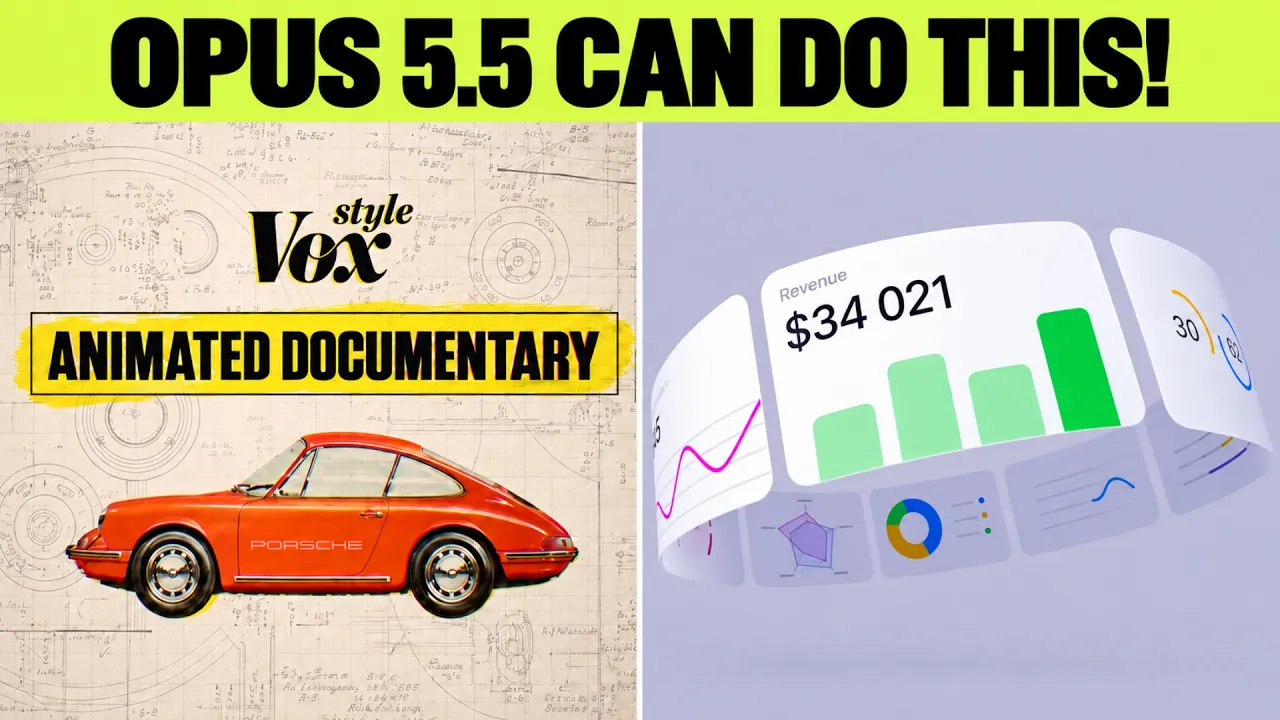
Antes do tutorial, o autor mostra três exemplos: um anúncio de produto SaaS feito em 15 minutos, um showreel de 15 segundos gerado a partir de um prompt simples (com efeitos sonoros e música) e uma animação 3D feita com Blender MCP por um criador chamado Kevin Ngo. A tese: o modelo produz motion graphics que parecem fruto de centenas de horas de um profissional.
Referências neste trecho
O fluxo padrão começa com a ideia, e há várias rotas (de JavaScript puro até o Opus orquestrando modelos de imagem e vídeo). O método escolhido é parear o Claude com um framework de vídeo por código, Remotion ou HyperFrames. Para instalar, basta pedir ao Opus 5.5 no Claude Code, mandando pesquisar a documentação oficial atual.
Referências neste trecho
Com o Remotion Studio aberto no navegador, o autor envia um prompt longo e anexa um vídeo de referência de ritmo e tipografia. O objetivo é um vídeo de 20 segundos comparando benchmarks do Sonnet 5.5 e do Opus 5.5, com a paleta oficial da Anthropic. Ele defende detalhe no prompt e referência visual, e proíbe o modelo de olhar projetos antigos para o teste ser justo.
Referências neste trecho
O vídeo sai fluido, com música e efeitos sonoros próprios, e serviria como B-roll de qualidade. Dica: Remotion com Claude Code pode não incluir áudio, então o prompt deve pedir que o modelo sintetize música e efeitos com bibliotecas Python. Melhorias possíveis: tipografia mais nítida e narração com voz de IA.
Ler no transcriptPara o que o autor chama de motion graphics de nível dois, o Opus se conecta a ferramentas externas por MCP (Model Context Protocol): gerador de imagens, gerador de voz, gerador de música e Blender para 3D. O MCP é a ponte padronizada que deixa o modelo interagir com software externo.
Referências neste trecho
Em uma sessão com todos os MCPs liberados, o autor pede um vídeo educativo de 15 segundos no Remotion comparando o tamanho do Sol com os outros oito planetas, no estilo editorial da Vox. O modelo gera voz, assets e música sem erros e escolhe uma voz adequada. O ponto fraco foi o roteiro, fácil de corrigir pedindo revisão ou fornecendo o próprio texto.
Referências neste trecho
04 — Temas
#motion-graphics-com-ia
O vídeo defende que o Opus 5.5 já gera motion graphics de nível profissional, de anúncios SaaS a animações 3D, por uma fração do custo de contratar um motion designer. O resultado depende de como o modelo é dirigido.
Aparece em
Referências ligadas
#remotion-e-hyperframes
Frameworks que permitem à IA gerar vídeo por código. O autor considera esse o melhor caminho atual para motion graphics precisos e usa o Remotion, instalado pelo próprio Claude Code.
Aparece em
Referências ligadas
#prompt-detalhado-e-referencia
Prompts genéricos como “faça o melhor vídeo” geram resultados sem graça. O autor detalha formato, duração, tipografia, paleta de cores e restrições, e anexa um vídeo de referência para o modelo copiar ritmo e layout.
Aparece em
#audio-com-ia
Sem instrução explícita, o Remotion com Claude Code pode sair sem áudio. O modelo pode sintetizar música e efeitos com Python, ou, no nível dois, usar geradores de música e voz via MCP.
Referências ligadas
#orquestracao-mcp
Conectar o Opus a gerador de imagens, voz, música e Blender o transforma em orquestrador. No teste do Sol e dos planetas, ele usou todas as ferramentas sem erros.
Aparece em
Referências ligadas
#ia-vs-motion-designer
Um vídeo que custaria centenas de dólares de um profissional sai em minutos. O autor ainda vê espaço para melhorar (tipografia, roteiro), mas considera o resultado utilizável como B-roll.
05 — Citações
“Normally, a SaaS product animation like this would cost hundreds of dollars to commission from a professional motion designer. But now, Opus 5.5 can do it in just a few minutes.” Normalmente, uma animação de produto SaaS assim custaria centenas de dólares de um motion designer profissional. Agora o Opus 5.5 faz em poucos minutos.
“I think these frameworks are the absolute best way to create precise motion graphics with AI right now.” Acho que esses frameworks são o melhor caminho para criar motion graphics precisos com IA hoje.
“If you just give it a lazy generic prompt like ”make me the best video you can“, the model isn't going to understand what you actually want and it will just spit out a very boring result.” Um prompt genérico como “faça o melhor vídeo possível” não diz o que você quer e gera um resultado sem graça.
“Giving the model a reference video to analyze is highly recommended right now.” Dar ao modelo um vídeo de referência para analisar é muito recomendado hoje.
“When you are generating a video using just Remotion and Claude Code, it might not automatically include audio.” Ao gerar vídeo só com Remotion e Claude Code, o áudio pode não vir automaticamente.
“By utilizing Python libraries, the model can synthesize its own audio tracks to lay perfectly underneath your motion graphics.” Com bibliotecas Python, o modelo pode sintetizar suas próprias trilhas de áudio para colocar sob as animações.
“MCP is essentially the standardized bridge that allows your AI model to safely interact with outside tools and software.” MCP é basicamente a ponte padronizada que permite ao modelo interagir com segurança com ferramentas e softwares externos.
“When you transform Opus 5.5 into a true orchestrator, you achieve those mind-blowing results I showed you earlier.” Quando você transforma o Opus 5.5 em um orquestrador de verdade, chega àqueles resultados impressionantes mostrados antes.
“The only real downside to this specific render is that the script the AI wrote is a little bit weak. But that is an incredibly easy fix.” O único ponto fraco desse render é que o roteiro da IA ficou meio fraco. Mas isso é muito fácil de corrigir.
06 — Referências
4 obras
| Obra | Autor | Tipo | Ano | Momentos | Contexto da menção | Link | Confiança |
|---|---|---|---|---|---|---|---|
| Model Context Protocol | Anthropic | protocolo / padrão aberto | 2024 | 08:31, 09:19, 10:06 | Ponte padronizada que permite ao Opus usar geradores de imagem, voz, música e Blender no fluxo de vídeo. | Wikipedia | explícita |
| Remotion | Remotion | software / framework de vídeo por código | — | 03:04, 03:52, 04:40, 10:06 | Framework escolhido pelo autor para o Claude gerar os vídeos programaticamente. | Site oficial | explícita |
| HyperFrames | HeyGen | software / framework de vídeo por código | — | 02:15, 03:04 | Alternativa ao Remotion, citada mas não demonstrada. | GitHub | corrigida |
| Blender | Blender Foundation | software / 3D | 1994 | 01:25, 08:31 | Usado via Blender MCP para animações 3D, como no exemplo de Kevin Ngo. | Wikipedia | explícita |
Autores e pessoas
Nenhum autor com ideia ou obra associada foi citado. O apresentador é o canal RandomAI (nome do apresentador não informado no vídeo).
Outras pessoas e lugares mencionados
Citados de passagem, sem ideia ou obra associada (sem nota global):
Menções não identificadas
07 — Transcript
Fonte: legenda en-orig (automática) · 2.106 palavras
Correções aplicadas à legenda: “Reotion” → “Remotion”; “Hyperframes” → “HyperFrames”; “SAS” → “SaaS”; “showre” → “showreel”; “gamecher” → “game-changer”; “MCPS” → “MCPs”; “Kevin NGO” → “Kevin Ngo”
00:00Claude Opus 5.5 can create mind-blowing motion graphics that look like a professional motion designer spent hundreds of hours on them. And this completely changes how we can use AI to create content and grow our business. So today, I'm going to walk you through exactly how to make these kinds of motion graphics yourself with Claude Opus 5.5. But before that, let me show you some of the things people are already creating with it so you can see how capable this model actually is. All right. So, first I wanted to show you this specific video that Opus 5.5 did in just 15 minutes. This video looks pretty insane, so let me just show it to you.
00:38— Got something to sell? Courses, ebooks, apps? Pockets Flow turns it into a store in minutes. Checkout, subscriptions, upsells, taxes, payouts, handled. You create, we handle the flow. — Now, as you can see, the result is actually pretty nice. It was made for promoting or explaining a feature for a software product, but that really doesn't matter here. What does matter is that the animation quality is highly engaging. It features great typography, and overall, the motion design is extremely impressive. Normally, a SaaS product animation like this would cost hundreds of dollars to commission from a professional motion designer. But now, Opus 5.5 can do it in just a few minutes. And here is another example of what this model is capable of when it comes to motion graphics. The video I'm
01:25about to show you was created using a very simple prompt. The user basically asks the model, “Make a dynamic 15-second motion graphics video that shows what an incredible motion designer you are. This is your showreel for a resume. Go all out.” And from that single prompt, Opus 5.5 generated this exact show reel right here. As you can see, the motion graphics look incredibly smooth and polished. It even added perfectly timed sound effects and some really good background music. So, it is clearly evident that Opus 5.5 is more than capable of making professional level motion graphics. And it isn't only 2D motion graphics that Opus 5.5 can create. The model is also fully capable of producing 3D animations and 3D motion graphics by using a Blender MCP, just like you see in this example by a creator named Kevin Ngo. As
02:15you can see, the video here looks absolutely great. The music fits perfectly, the 3D animations are fluid, and the lighting effects throughout the scene are just stunning. Basically, there is an almost infinite number of different art styles and methods you can use with Opus 5.5 to create motion graphics. This model truly is a game-changer. All right, so let's dive into the actual process of how you can use Claude Opus 5.5 to make these amazing motion graphics yourself. First of all, the standard workflow starts with just giving the model your idea. From there, Claude Opus 5.5 can use several different methods to turn that idea into a finished video. There are quite a few approaches here, ranging from pure JavaScript animations all the way to Opus 5.5 acting as an orchestrator for various image and video generation models. But the main method we are going
03:04to focus on today is pairing Claude with an animation framework like Remotion or HyperFrames. If you aren't familiar with Remotion or HyperFrames, these are basically platforms that enable AI models to generate videos programmatically using code. These are fantastic tools to pair with our models, and honestly, I think these frameworks are the absolute best way to create precise motion graphics with AI right now. So, today I'm going to walk you through exactly how to use Claude Opus 5.5 with Remotion. I won't be covering hyperframes in this video simply because I personally use Remotion a lot more often, but if you do prefer hyperframes, the process is very similar since they are both coding frameworks designed to help AI agents build videos from scratch. To get started and download Remotion, you can just open up Claude Code and select Opus 5.5 as your active
03:52model. You don't need to do any of the manual setup yourself. You can just give the AI model a detailed prompt like this one where I ask it to download and set up the latest version of Remotion directly in the project folder I'm working in. I also specifically instruct the model to research Remotion's current official documentation and tools, ensuring it knows exactly how to build videos using the most up-to-date syntax. This detailed prompt works perfectly for setting everything up. Alternatively, you could just give it a shorter prompt simply asking it to install Remotion. The model is smart enough to understand your intent and will handle the configuration either way. Now, for this specific folder, I've already set up Remotion, so I don't need to run it again. But if you are starting fresh, just drop that prompt in and the model will take care of the entire setup process for you. After the model finishes downloading and configuring
04:40Remotion, it is going to open up the Remotion Studio right inside your web browser. Over here in this section, you will see a list of all the animations you've created with your AI model. Now, your screen won't have the massive list of animations that you see on mine. That's just because I've been testing and creating videos with various AI models for a long time. If it's your first time, you are just going to see the standard default animation along with your new project files. Once you are on this screen, your setup is complete and you are ready to start creating your own motion graphics. So, let's make our first motion graphics video with Opus 5.5. I'm going to feed the model a prompt that looks like this.
05:18And I'm also going to attach a reference video so the AI understands exactly how the pacing and timing should feel. As you can see, this is a pretty massive and detailed prompt. But this level of detail is crucial. If you just give it a lazy generic prompt like make me the best video you can or make a stunning premium video, the model isn't going to understand what you actually want and it will just spit out a very dumb boring result. We definitely want to avoid that. So, in this prompt, I specifically told it to replicate the animation style of the provided reference file. The main goal here is to create a 20- second motion graphics video in Remotion that compares the benchmark scores of Sonnet 5.5 against Opus 5.5. I instructed it to study the reference video's layout structure and its exact typography
06:07treatment. For the color scheme, I specifically asked the model to use Claude's official brand identity and Anthropics color palette. Of course, when you are generating videos for your own business, you should upload your own custom hex codes and branding guidelines. I also made sure to explicitly command the model not to inspect any of my older projects or folders in this directory. I wanted to prevent it from having an unfair advantage since those older files were built over months of heavy testing and tweaking. I wanted this to be a completely fresh, fair test. Giving the model a reference video to analyze is highly recommended right now. Without one, the AI can sometimes struggle to invent a beautiful composition entirely from scratch. Unless you are a godlevel motion designer who can write the layout instructions flawlessly. For most of us, providing a visual reference is
06:55definitely the smartest and most effective path. All right, let's run the prompt and see what kind of result it gives us. Okay, the model has finished creating the video. It actually did its own proper research on the benchmarks for both Sonnet 5.5 and Opus 5.5. And here is the final resulting video. Let me just play it for you. Now, as you can clearly see, this video looks extremely nice. The motion graphics are fluid and the model even added its own generated background music
07:43and layered in some really crisp sound effects. One quick tip though, when you are generating a video using just reotion and claude code, it might not automatically include audio. So in your initial prompt, you need to explicitly tell the model to generate the sound effects and background music using Python. By utilizing Python libraries, the model can synthesize its own audio tracks to lay perfectly underneath your motion graphics. Overall, this video was pretty solid and effectively got the point across. You could easily drop a clip like this into your YouTube video as highquality B-roll. Now, there is definitely room for improvement here. We could tweak the typography to be a bit sharper, and we could also add an AI voice over to actively narrate the benchmark comparisons between Opus and Sonnet. That would elevate the video significantly. But even as it stands,
08:31the raw motion graphics look fantastic. To take Opus 5.5 to the absolute next level, what I like to call level two motion graphics, we need to connect the model to external tools and let it act as a central orchestrator. By hooking Opus up to a variety of different AI services, we can dramatically improve the final output. For example, we can connect it to an image generator, allowing the model to create custom visual assets and inject those image segments directly into the video pipeline. We can also hook it up to an advanced voice generator to automatically add professional narration. Connecting it to a dedicated music generator is also a massive upgrade because then Opus doesn't have to rely purely on basic Python scripts for its audio. It can prompt a true music model for highquality tracks. We can even connect it directly to Blender
09:19to execute complex 3D animations. When you transform Opus 5.5 into a true orchestrator, you achieve those mind-blowing results I showed you earlier. You can accomplish all of this using MCPs, which stands for model context protocol. MCP is essentially the standardized bridge that allows your AI model to safely interact with outside tools and software. If you are serious about pushing the limits of motion graphics with Claude, MCPs are something you absolutely need to explore. Let me show you exactly how much better Opus 5.5 performs when it operates as an orchestrator with full access to these tools. I have a separate session open here and I'm going to feed the model a new prompt. This time I am granting it full permission to use all the MCPs we currently have connected. The goal of
10:06this prompt is to create a highly polished 15-second educational motion graphics video in Remotion comparing the sheer scale of the sun to the other eight planets. The model has full authorization to use its MCPs to generate the voice over, the assets, and the music. I also specifically requested it to use the Vox editorial animation style that we've been experimenting with recently. Let's submit this prompt so you can see just how incredible these orchestrated motion graphics can actually be. Let's wait a moment and see what the model generates. And we're done. The AI has finished orchestrating all the different tools, generated the assets, and fully animated the composition. Let's take a look.
10:45— Let Earth be our ruler. Mercury, Mars, and Venus all smaller. Neptune and Uranus about four Earths across. Saturn over 9, Jupiter 11, and the Sun 109. — As you can see, the result is beautiful. The animation is buttery smooth, and the motion graphics are incredibly on point. The model correctly orchestrated every single MCP without errors, and it even selected a perfectly fitting voice for the narrator. The only real downside to this specific render is that the script the AI wrote is a little bit weak. But that is an incredibly easy fix. We can either ask the model to refine the script or just provide our own written script and let the AI do the heavy lifting from there. It is remarkably clear that Opus 5.5 is a powerhouse for creating stunning motion graphics. And
11:36as you've seen, it becomes even more powerful when you know exactly how to direct the model and give it access to the right tools. Now, that was about it for today's video. If you found it helpful, then please don't forget to like and subscribe.